Here's a Moodle 2 "cheat sheet" to help users get through the basics of creating course content in Moodle. If you see errors or something you think I should add, please leave a comment.
http://www.scribd.com/doc/97460871/Moodle-How-to-Basics-2-x
Thanks!
Saturday, July 14, 2012
Tuesday, July 10, 2012
Menu avoids scroll of death, Moodle 2
I wanted to stop having my students scroll around to find work - and also wanted to stop having to drag units up and down as we move from one to the next.
So I used Mary Cooch's lovely idea of making my Moodle courses more like web pages (see her video at http://www.youtube.com/watch?v=XtHPUh_BaxM) and expanded on it.
Create a table with a cell for each unit in the unit summary (this is the first Edit icon you see in a topic - when you have editing turned on). I first added the text, then added an image. I had to play around with the image sizes a bit to make them all consistent, so the text would all line up. I put the table in topic 1, but it would probably have been better to put it in the news forum topic.
Create a section links block. This will give you a list of blocks. You can make the block invisible later, but it will give you the locations for each topic, which you want to link to the correct picture. Keep it, since you might want to use it later when you add/change topics.
In the section links block, right click on the number associated with the first picture. One of your choices is "Copy link location." Click on that.
Then (with editing turned on), while editing your menu, click on the image you want to associate with the link, then click on the link icon, paste the link in, and click on Insert. I let the default stand - to stay on the same web page.
Save your edit, then click on the image to make sure you go to the correct topic (so embarrassing when you go to the wrong one).
Then, if you don't want your students to see anything but your menu, go into Settings, and change the number of topics to 1. Your students will still be able to get to all those other topics, but when they enter your course, they'll only see the menu. Caveat: at least, that's the way I understand that it's supposed to work - not working that way on my installation of Moodle 2 just yet.
So I used Mary Cooch's lovely idea of making my Moodle courses more like web pages (see her video at http://www.youtube.com/watch?v=XtHPUh_BaxM) and expanded on it.
Create a table with a cell for each unit in the unit summary (this is the first Edit icon you see in a topic - when you have editing turned on). I first added the text, then added an image. I had to play around with the image sizes a bit to make them all consistent, so the text would all line up. I put the table in topic 1, but it would probably have been better to put it in the news forum topic.
Create a section links block. This will give you a list of blocks. You can make the block invisible later, but it will give you the locations for each topic, which you want to link to the correct picture. Keep it, since you might want to use it later when you add/change topics.
In the section links block, right click on the number associated with the first picture. One of your choices is "Copy link location." Click on that.
Then (with editing turned on), while editing your menu, click on the image you want to associate with the link, then click on the link icon, paste the link in, and click on Insert. I let the default stand - to stay on the same web page.
Save your edit, then click on the image to make sure you go to the correct topic (so embarrassing when you go to the wrong one).
Then, if you don't want your students to see anything but your menu, go into Settings, and change the number of topics to 1. Your students will still be able to get to all those other topics, but when they enter your course, they'll only see the menu. Caveat: at least, that's the way I understand that it's supposed to work - not working that way on my installation of Moodle 2 just yet.
Tuesday, June 19, 2012
Getting to know Moodle 2
Since my Moodle host, GlobalClassroom, has just moved to Moodle 2 from 1.9, I'm doing it, too.
GlobalClassroom nicely upgraded my existing courses into a new URL, so I can have both old and new courses to compare (and can do some strategic copy and paste).
Since all the nice blocks I created disappeared during the conversion (almost the only thing I lost), having both old and new open at the same time has been a good thing.
And I lost some of my images, but not all. I'm happy about that, because I use a lot of images. My students are very visual and really don't respond very well to lots of unadorned text. I'm getting better and better at original images (screen shots, Wordles/Tagxedos, my own photographs...), as well at resizing images so the pages will load more quickly.
Since I'm scrutinizing everything, I'm switching embedded videos to links. The videos converted well, but they make the courses take forever to load in 1.9 and 2.x). Embedded looks snazzy, but a speedy course is easier to use.
Have found some really nice features of Moodle 2. For example,
Still exploring. Such fun to have a new toy. ;-P
GlobalClassroom nicely upgraded my existing courses into a new URL, so I can have both old and new courses to compare (and can do some strategic copy and paste).
Since all the nice blocks I created disappeared during the conversion (almost the only thing I lost), having both old and new open at the same time has been a good thing.
And I lost some of my images, but not all. I'm happy about that, because I use a lot of images. My students are very visual and really don't respond very well to lots of unadorned text. I'm getting better and better at original images (screen shots, Wordles/Tagxedos, my own photographs...), as well at resizing images so the pages will load more quickly.
Since I'm scrutinizing everything, I'm switching embedded videos to links. The videos converted well, but they make the courses take forever to load in 1.9 and 2.x). Embedded looks snazzy, but a speedy course is easier to use.
Have found some really nice features of Moodle 2. For example,
- It's much easier to move individual resources and activities. Drag the 4-pointed arrow for the item around.
- It's much easier to move a topic. Just drag the 4-pointed arrow for the topic/week around.
- It's much easier to move a block. Just edit the block and set its relative location. 0 is top, 1 under that and so on. (Don't forget to set relative location in both "this page" and all pages.) It's easy to move a block left or right while in edit, too. One can even pick whether the block is on all pages (example: a help block), or just some.
- Topics can have names instead of numbers! This especially makes sense if you move topics around.
- The new blog-like forum type shows exactly what I've been looking for (see example). Instead of lists of threads, you can see what each student has written without first having to click on each thread. This is much friendlier when you want to have multiple threads, but also let students see what's in each thread. This will be much more engaging and should encourage interaction.
Still exploring. Such fun to have a new toy. ;-P
Monday, June 18, 2012
Moodle Resources (especially 2.x)
Decided this information needed updating.
Moodle Community
· Moodle.org forums http://moodle.org/forums/
· Moodle.org documentation http://docs.moodle.org/
Sample courses: (sample courses to see how they’re put together)
· Moodleshare http://courses.moodleshare.com/
· Moodle Commons http://www.moodlecommons.org/
· Mt. Orange School Demo (example of 2.x course) http://school.demo.moodle.net/
Moodle Tool Guide for Teachers: (marvelous summary of functions, ease of use, relation to Bloom’s Taxonomy, from Joyce Seitzinger)
· 1.9 http://www.cats-pyjamas.net/2010/05/moodle-tool-guide-for-teachers/
· 2.0 http://www.somerandomthoughts.com/blog/wp-content/uploads/2012/03/AMoodle2ToolGuideforTeachers.pdf
Blogs include:
· Moodle News – regular updates and news about Moodle. Very helpful. http://www.moodlenews.com
Hosting – some possibilities
· http://globalclassroom.us/
· http://www.moodlerooms.com/markets/k-12/
· Free: http://moodle.org/mod/forum/discuss.php?d=146897
· Free – collection of free hosting possibilities http://www.moodlenews.com/collections/hosting/
Tutorial resources include:
· http://www.freetech4teachers.com/2012/05/moodle-tutorial-videos.html
· http://jasonrenshaw.typepad.com/jason_renshaws_web_log/moodle-tutorials-from-english-raven.html
. New! http://www.youtube.com/user/Gr8TechTools
Books about Moodle include:
Moodle 2.x
· Moodle 2.0 First Look, Mary Cooch
· Moodle 2 Administration, Alex Büchner
Moodle 1.9
· Moodle 1.9 for Teaching 7-14 year olds, Mary Cooch
· Moodle for Dummies, Radana Dvorak
· William Rice
· Administration – Using Moodle, Moodle Administration
Moodle Community
· Moodle.org forums http://moodle.org/forums/
· Moodle.org documentation http://docs.moodle.org/
Sample courses: (sample courses to see how they’re put together)
· Moodleshare http://courses.moodleshare.com/
· Moodle Commons http://www.moodlecommons.org/
· Mt. Orange School Demo (example of 2.x course) http://school.demo.moodle.net/
Moodle Tool Guide for Teachers: (marvelous summary of functions, ease of use, relation to Bloom’s Taxonomy, from Joyce Seitzinger)
· 1.9 http://www.cats-pyjamas.net/2010/05/moodle-tool-guide-for-teachers/
· 2.0 http://www.somerandomthoughts.com/blog/wp-content/uploads/2012/03/AMoodle2ToolGuideforTeachers.pdf
Blogs include:
· Moodle News – regular updates and news about Moodle. Very helpful. http://www.moodlenews.com
Hosting – some possibilities
· http://globalclassroom.us/
· http://www.moodlerooms.com/markets/k-12/
· Free: http://moodle.org/mod/forum/discuss.php?d=146897
· Free – collection of free hosting possibilities http://www.moodlenews.com/collections/hosting/
Tutorial resources include:
· http://www.freetech4teachers.com/2012/05/moodle-tutorial-videos.html
· http://jasonrenshaw.typepad.com/jason_renshaws_web_log/moodle-tutorials-from-english-raven.html
. New! http://www.youtube.com/user/Gr8TechTools
Books about Moodle include:
Moodle 2.x
· Moodle 2.0 First Look, Mary Cooch
· Moodle 2 Administration, Alex Büchner
Moodle 1.9
· Moodle 1.9 for Teaching 7-14 year olds, Mary Cooch
· Moodle for Dummies, Radana Dvorak
· William Rice
· Administration – Using Moodle, Moodle Administration
Saturday, March 3, 2012
Logistics: assessing online discussions
Moodle provides a wonderful variety of discussion forums – they provide for reflection, engagement, deeper understanding, broad participation, and much else – but the work also needs to be assessed. Here’s one way to handle it:
I’ve set each discussion forum to send me an email whenever a student posts. I can read the post on the spot and even click on a reply button in the email. But I prefer to group replying and grading into clumps, rather than doing them piecemeal. My replies and assessments are more consistent that way. But I like to see if there are problems, misunderstandings, or the occasional inappropriate post that I need to address now.
Replying at one time every day works well – otherwise you’ll feel like you’re being nibbled to death by ducks, and lose a sense of how the discussion is developing.
Since I’m usually looking for students to engage with the question and with each other, and since these are evolving skills, my focus is on formative assessment. Can I use my replies to coax the student into deeper thought? Does the student have a question that needs answering? (Since I teach blended classes, I often bring these items up during F2F class, benefiting both the student who posted and the entire class.)
Moodle forums are a bit cumbersome to grade. To see the posts in context, one must click on the forum, then on the post to open it (unless using the single, simple discussion). Then click on Reply and write the reply. Then click on Post to forum. Then on Continue. Then on the name of the forum. And on to the next student. But this gives me the flavor of the entire discussion that I don’t get from the emails.
I keep a blank class list to write comments on and often just use: checkmark, +, or -. If I’ve asked for replies to at least two classmates, I make checkmarks for these. Keeping this information in one place for each assignment makes keeping track of student work and coming up with a grade easier. My grading for most discussions is done/not done, though with loss of points when there is not much effort. I’m focusing on building confidence and participation.
If I see that there is nothing on the class list/grading sheet for a student, I’ll then go to Participants and pull up the student’s record, which has all their forum posts in one place. This shows me quickly if the student posted and I somehow missed it (perhaps the student replied to somebody else when they were supposed to create a separate thread).
My school has an online gradebook, Gradequick, so I mostly use that gradebook rather than Moodle’s. It takes about a minute to enter one class’ grades there.
I wish there were a quicker way to get through the process of replying to Moodle discussions, so if anybody knows of one, please let me know!
I’ve set each discussion forum to send me an email whenever a student posts. I can read the post on the spot and even click on a reply button in the email. But I prefer to group replying and grading into clumps, rather than doing them piecemeal. My replies and assessments are more consistent that way. But I like to see if there are problems, misunderstandings, or the occasional inappropriate post that I need to address now.
Replying at one time every day works well – otherwise you’ll feel like you’re being nibbled to death by ducks, and lose a sense of how the discussion is developing.
Since I’m usually looking for students to engage with the question and with each other, and since these are evolving skills, my focus is on formative assessment. Can I use my replies to coax the student into deeper thought? Does the student have a question that needs answering? (Since I teach blended classes, I often bring these items up during F2F class, benefiting both the student who posted and the entire class.)
Moodle forums are a bit cumbersome to grade. To see the posts in context, one must click on the forum, then on the post to open it (unless using the single, simple discussion). Then click on Reply and write the reply. Then click on Post to forum. Then on Continue. Then on the name of the forum. And on to the next student. But this gives me the flavor of the entire discussion that I don’t get from the emails.
I keep a blank class list to write comments on and often just use: checkmark, +, or -. If I’ve asked for replies to at least two classmates, I make checkmarks for these. Keeping this information in one place for each assignment makes keeping track of student work and coming up with a grade easier. My grading for most discussions is done/not done, though with loss of points when there is not much effort. I’m focusing on building confidence and participation.
If I see that there is nothing on the class list/grading sheet for a student, I’ll then go to Participants and pull up the student’s record, which has all their forum posts in one place. This shows me quickly if the student posted and I somehow missed it (perhaps the student replied to somebody else when they were supposed to create a separate thread).
My school has an online gradebook, Gradequick, so I mostly use that gradebook rather than Moodle’s. It takes about a minute to enter one class’ grades there.
I wish there were a quicker way to get through the process of replying to Moodle discussions, so if anybody knows of one, please let me know!
Labels:
Assessment,
discussion,
grading,
logistics,
moodle
Saturday, February 11, 2012
Two-way journals with 7th graders
Three big differences. First, the already-mentioned 7th grade enthusiasm for using online / Moodle for communications (even though they see each other daily). Boys and girls used Moodle discussions at about the same rates.
Second difference, 7th grade students are reading faster. In the past, I’ve given students about 2 ½ to 3 weeks to read their books, and many have needed every single day. Lately, I’ve been hearing, “Can we get a new book? We finished ours already,” from the 7th grade. The 8th graders enjoy the project, but take a more blasé attitude. They finish the book and write reflections after they’ve finished. The 7th graders seem to prefer to keep on reading. On the other hand, I’ve had quite a number of “non-reader” 8th graders who have begged for us to do more two-way journals, “so we can read the next book in that series.” And 8th graders don’t have time set aside for reaching, while 7th graders still do.
Third difference, students are writing more, and writing in more depth. In most cases, I’m seeing deeper thinking. This is only the second two-way journal that the 7th graders have done. But boy do they get it. And are they into it! They’re even referring to things they learned in other classes. I’m seeing this across the spectrum of reading ability; with 8th graders, I see more of what I can only call “dancing on the surface.” 8th grade is more about being cool; 7th graders can’t manage that yet.
Two 7th grade pairs selected a book they decided they hated after just a few days of reading – Canned. Could they please, please change? Of course! I want them to find a book they’d rather read because then they’ll read. One pair selected New Boy. The other chose One Fat Summer. And they’re off and running. (The 8th graders when they didn’t particularly like the book, persevered. Too much trouble to find a new book?) It does help to have hundreds of books for them to choose from.
I’m curious to see how these 7th graders will use two-way journals next year when they are in 8th grade. Will they take a step back? Be less enthusiastic? I’ll need to find a way to make two-way journals become fresh for them – maybe require them to add images to their words, something the 7th graders occasionally do already without prompting.
Using personal online conversations to help students achieve
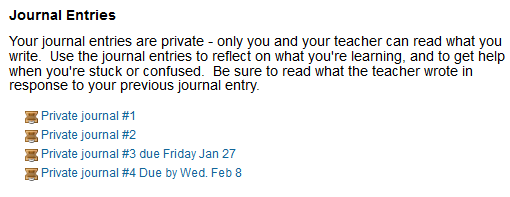
When students are engaged in an extensive research project, I want them to have a way to converse privately with the teacher, to reflect about what they’re learning, and to have an opportunity to get extra help. I called these Private Journals to reinforce their private nature. In the past, I’ve used separate threads in a single discussion forum for this task, but that didn’t provide much privacy. Once I learned how to use the Online Text Assignment in Moodle, I switched to this instead. See: http://adventuresonlineteaching.blogspot.com/2011/12/private-teacher-student-conversation.html
I’ve always thought providing this private communication channel was a good idea. But I’ve found evidence that it’s even better than I thought.
After we finished the project, I asked students to tell me what worked well for them and what didn’t work; they answered free-form, not from a list. Many of them spontaneously said they liked the Private Journals.
I wasn’t even sure they were looking at my replies in the Private Journals, but then I checked out the Participation Report (under Administration >Reports) where I could see how many times students edited or viewed the entries. (Thanks to Colin Matheson in the Moodle Mayhem Listserv http://groups.google.com/group/moodlemayhem?hl=en&pli=1 for this great idea). Students generally wrote their entry without further rewrites, but many went back to either 1) see if I had replied yet, or 2) read my reply several times. How’s that for evidence that teachers matter?
I really enjoy this part of the project, as it allows me to give undivided individual attention.
Clearly students want this special attention. I could suggest resources or search strategies, or give attaboys, or listen to some new cool fact they had learned, or just share their enthusiasm for what they were learning. It was like having a mini-tutoring session with each student – without interruptions as well as with time for me to think.
I had been afraid that I wouldn’t be able to get the conversation going when each Private Forum post was separate from previous entries; in each, the student speaks and then the teacher speaks. This was more disjointed than using a separate thread in a discussion forum for each student. But we still managed.
I also learned to add the due date to the title of the different posts so that students could distinguish them. (I had originally just posted four Private Journals for students to post to, but they found this confusing, and were posting in random Private Journals – lesson learned).
As in the past, when I’ve used this tool (along with making sure students have found a subject they really want to research,) the result has been well-researched and well-written reports from a great variety of learners.
I always thought this was a useful tool – I just didn’t know how much.
I’ve always thought providing this private communication channel was a good idea. But I’ve found evidence that it’s even better than I thought.
After we finished the project, I asked students to tell me what worked well for them and what didn’t work; they answered free-form, not from a list. Many of them spontaneously said they liked the Private Journals.
I wasn’t even sure they were looking at my replies in the Private Journals, but then I checked out the Participation Report (under Administration >Reports) where I could see how many times students edited or viewed the entries. (Thanks to Colin Matheson in the Moodle Mayhem Listserv http://groups.google.com/group/moodlemayhem?hl=en&pli=1 for this great idea). Students generally wrote their entry without further rewrites, but many went back to either 1) see if I had replied yet, or 2) read my reply several times. How’s that for evidence that teachers matter?
I really enjoy this part of the project, as it allows me to give undivided individual attention.
Clearly students want this special attention. I could suggest resources or search strategies, or give attaboys, or listen to some new cool fact they had learned, or just share their enthusiasm for what they were learning. It was like having a mini-tutoring session with each student – without interruptions as well as with time for me to think.
I had been afraid that I wouldn’t be able to get the conversation going when each Private Forum post was separate from previous entries; in each, the student speaks and then the teacher speaks. This was more disjointed than using a separate thread in a discussion forum for each student. But we still managed.
I also learned to add the due date to the title of the different posts so that students could distinguish them. (I had originally just posted four Private Journals for students to post to, but they found this confusing, and were posting in random Private Journals – lesson learned).
As in the past, when I’ve used this tool (along with making sure students have found a subject they really want to research,) the result has been well-researched and well-written reports from a great variety of learners.
I always thought this was a useful tool – I just didn’t know how much.
Subscribe to:
Posts (Atom)