Showing posts with label Assessment. Show all posts

Saturday, March 3, 2012

Logistics: assessing online discussions

Moodle provides a wonderful variety of discussion forums – they provide for reflection, engagement, deeper understanding, broad participation, and much else – but the work also needs to be assessed.  Here’s one way to handle it:

I’ve set each discussion forum to send me an email whenever a student posts.  I can read the post on the spot and even click on a reply button in the email.  But I prefer to group replying and grading into clumps, rather than doing them piecemeal.  My replies and assessments are more consistent that way.  But I like to see if there are problems, misunderstandings, or the occasional inappropriate post that I need to address now. 

Replying at one time every day works well – otherwise you’ll feel like you’re being nibbled to death by ducks, and lose a sense of how the discussion is developing.
   
Since I’m usually looking for students to engage with the question and with each other, and since these are evolving skills, my focus is on formative assessment.  Can I use my replies to coax the student into deeper thought?  Does the student have a question that needs answering?  (Since I teach blended classes, I often bring these items up during F2F class, benefiting both the student who posted and the entire class.)
  
Moodle forums are a bit cumbersome to grade.   To see the posts in context, one must click on the forum, then on the post to open it (unless using the single, simple discussion).  Then click on Reply and write the reply.  Then click on Post to forum.  Then on Continue.  Then on the name of the forum.  And on to the next student.  But this gives me the flavor of the entire discussion that I don’t get from the emails. 

I keep a blank class list to write comments on and often just use: checkmark, +, or -.  If I’ve asked for replies to at least two classmates, I make checkmarks for these.  Keeping this information in one place for each assignment makes keeping track of student work and coming up with a grade easier.  My grading for most discussions is done/not done, though with loss of points when there is not much effort.  I’m focusing on building confidence and participation.

If I see that there is nothing on the class list/grading sheet for a student, I’ll then go to Participants and pull up the student’s record, which has all their forum posts in one place.  This shows me quickly if the student posted and I somehow missed it (perhaps the student replied to somebody else when they were supposed to create a separate thread). 

My school has an online gradebook, Gradequick, so I mostly use that gradebook rather than Moodle’s.  It takes about a minute to enter one class’ grades there.

I wish there were a quicker way to get through the process of replying to Moodle discussions, so if anybody knows of one, please let me know!

Tuesday, December 13, 2011

Using Hot Potatoes with Moodle

I’ve never used the quiz module in Moodle both because it’s hard to use, and because multiple choice isn’t something I use a lot.  As an English teacher, I usually want my students to write. 

But I still want to be able to use quiz-type activities, especially for review.   So I was delighted to see that my Moodle host, GlobalClassroom, supports Hot Potatoes, which provides matching, multiple-choice, cloze, and similar activities, with very minimal effort on my part.

Here’s how it worked for me.

First, I downloaded Hot Potatoes to my PC, available from the University of Victoria at http://hotpot.uvic.ca/ .  It will also work on Mac and Linux.

Then, using the Hot Potatoes program that is now on my desktop, I created a matching exercise to help students review what they know about homophones, with the words on the left and short definitions on the right.  Students drag the correct definition to the word and then check their work.  You choose the type of quiz and enter the questions next to the correct answers (students will see the answers scrambled).  You can use the default directions or add your own.   And you can set the number of tries as well as a time limit for each try. 

After saving the Hot Potatoes exercise on my PC, I opened Moodle, and clicked on Add an Activity and then on Hot Potatoes Quiz.  Then I uploaded the file I just created and voila, there it is. 

Today my students practiced with the new quiz in class, some several times until they got it right (or at least better).  Some asked, “Can I try this some more at home?”  which is just what I want to hear.   
I learned to use Hot Potato from the Moodle eAssessment course I took through LearnNowBC http://www.learnnowbc.ca/educators/MoodleMeets/default.aspx

Tuesday, November 29, 2011

Using the Lesson tool in Moodle

    Thanks to the Moodle eAssessment course I took through LearnNowBC  I’ve learned how to create a lesson – a highly structured way to take students through activities and a variety of possible assessments.

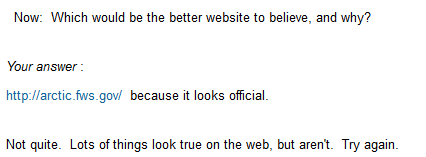
    I decided to try creating a lesson for technology in an area where students really blow through the work I give them without really looking at it – evaluating websites.  I decided to make Moodle the “bad guy,” remembering that my brother used a computer chess program to teach his kids how to play chess.  The computer wouldn’t let them make any invalid moves, so they were forced to follow the rules.  I hoped the same thing will happen here.

    I set up quite a simple, linear lesson.  I start with a PowerPoint which I actually present in class so that we can discuss it, showing students some examples of websites that are less than honest or not very balanced.  (If a student missed that class, they can still watch the PowerPoint).

    Then I walk the student through an example.  Here’s a real website.  Look first at who’s the author.  I give some examples of where to find the author, then ask a multiple choice question (could also do T/F, short-answer, essay, and a few others) to see if they can identify the author.  The wrong answers explain why they’re wrong and return the student to the information and question for another try.

    I do the same thing with other facts I want them to evaluate, such as, who links into this website, what links out are there (and are these current and valid), how accurate is this information, and so on.  Students must get the right answer before they can go on.

    Next, I give students two other websites to evaluate using the same criteria, but without quite as much hand-holding.  I use multiple choice to make sure they “get” it again.

    Finally, I ask students to evaluate a really biased website.  This time they have to write a short essay explaining why / why not they think it is a valid website to use, using evidence from their own evaluation. 

    Though I’ve gone through a similar process with paper directions, I find that students skip many steps and I have had to spend a lot of time redirecting.  Now, Moodle is doing this for me.

    The result?  A few students blew right through, but I could tell that from their final written assignment.  I’ve told them to go back and do the actual work.  The rest… got it!  Some didn’t get every single part of what I wanted them to learn, but they understood the basic concepts and could articulate their thought process.  (We also learned that Lesson doesn't seem to work with Internet Explorer, but works fine with Firefox, and that if you stop a lesson in the middle, Moodle saves your place.)

    And I didn’t have to remind kid after kid after kid to look at the details – the program did it for me. I’m sitting here smiling.

Wednesday, August 10, 2011

Using surveys to gather data, assess, communicate

    In the past year, I’ve used a lot of surveys which have really helped in gathering data for students to work with, in assessment of student learning, and in parent communications.  I use SurveyMonkey http://www.surveymonkey.com/ but Zoomerang would work just as well.  Both have free versions.  I put links in Moodle or in emails.  I tried embedding in Moodle, but some students couldn't access the surveys, so I don't embed surveys any more.

Gathering Data

    At the start of the year, when I might not know my students all that well, I find out a little bit about their attitudes toward my subject (English) and what they’d like to learn.  At the end of the year, I ask which topics students enjoyed most/least, what I should do more of, and advice they’d give next year’s students.  The feedback was valuable http://adventuresonlineteaching.blogspot.com/2011/06/what-students-like-about-moodle.html and helped me make changes to improve learning. http://adventuresonlineteaching.blogspot.com/2011/06/student-survey-helps-me-improve.html

    During our media literacy unit, we used a survey to determine how much time students spend with different media, and any difficulties they had experienced (strangers, bullying, etc.)  We then used this as the basis of discussions, writing, and math and graphing work in Excel.  http://adventuresonlineteaching.blogspot.com/2011/04/using-surveys.html  

Assessment

  Surveys are good for pre-tests – what do you know and what do you want to learn?  The free SurveyMonkey account won’t allow you to download a spreadsheet, which would make surveys better for tests, because then you could see who gave which answer; with the free account, copying and pasting makes this possible, but is more time-consuming. 

    For a part-way through a unit assessment – just to see what questions can be answered correctly – a survey could be helpful.  

    I don’t usually attach a grade to a survey.  There are really no controls with free surveys to assure me who made which responses.   But there are many assessments I do that aren’t graded – they tell me how I’m doing and how the class is doing.

Parent Communications

    Last year, I asked parents which communication modes I used which were most useful to them.  I wrote about that here:  http://adventuresonlineteaching.blogspot.com/2011/05/parent-survey-says-communicate.html  I want to ask some of the same questions at the start of the year, and ask for other suggestions.

    It’s easy to create a survey and there are many different kinds of questions possible, including short-answer, essay, multiple choice.  It’s possible to require an answer to a question, to control whether the survey can be taken from the same computer, to include page-breaks and choose color. The free version of SurveyMonkey is limited to 10 questions, but I find that fits well with my students’ attention span.

    I’m setting up my start of the year surveys, modifying questions, clearing last year’s answers, curious to see how the answers will change.

    For Surveymonkey tutorials and guides, see http://help.surveymonkey.com/app/tutorials/categorylist

Saturday, June 18, 2011

Assessment in Moodle

It’s not enough to have fun activities in Moodle.  If you’re a teacher, the activities have to have a point.  What do I want my students to know/do?  And how will I know if they have succeeded?

Moodle provides many tools – especially for formative assessment.  (If educational terminology causes temporary insanity, that means “as you go along.”)  It’s my favorite kind of assessment, and you can build it right into your activities.

  • For example, forum discussions are a perfect way for you to determine – Did they read it?  Did they get it?  Can they incorporate what they’ve learned and go on to the next step?  The activity provides the assessment tool – love it, love it, love it. 
  • Any project, whether individual or group, can use Moodle tools for collaborating, refining, publishing, all of which allow for either formative or summative (final) assessment. Students can use a forum discussion, add items to the glossary, use the wiki to collect/modify information, post ideas to their blogs…
  • Assignment with upload – You can use the Assignment module and then have students upload their work (Word documents, PowerPoints, you name it)  or give them written directions (in a label or in a document/web page) and then have them upload their work, or have the directions in a discussion forum and have students post their work or attach it to their post…  Important:  make sure you increase the size of the possible student files, or your students will be unable to upload and will be frustrated.
  • Post a picture/ embed a video on a discussion forum and ask for responses, a la VoiceThread.  Students can make text comments, post pictures, add podcasts…   It doesn’t look as jazzy as VoiceThread, but you don’t have to set up all those student accounts and teach your students a new tool, either.
  • Moodle also has a quiz tool – you can create self-grading quizzes and give students repeated chances to pass the quiz (with possibly different sets of questions each time).  The quiz is particularly good for helping students self-assess if factual material has been learned.  I confess I don’t use the Moodle quiz, but see that Hot Potato (which is much easier for setting up a quiz) is now available from my Moodle host, so I’m going to check into that. 
  • Moodle has a gradebook which I have barely used (as my school has an electronic gradebook that includes all work, not just Moodle work), but I want to work with this more because I can use it for student feedback.
Not to mention internet tools which can be embedded in Moodle or linked to from Moodle, such as:
  • Poll – Students can vote and see the results immediately.
  • Survey -    My students really enjoy surveys, and these are an easy way to find out what students know about a topic before you start studying it, to get student opinions afterwards, and even for short-answer or essay questions. 
  • Mindmap – great for visually showing ideas. 
There’s learning going on and you can watch it happen.  

Update:  I heard from  @eixarach on Twitter about another assessment resource: @francesblo You can also find already made content at http://collection.wiris.com/quizzes Contact us if you need more info.

Thursday, June 16, 2011

Grades 6-12 Quality Matters Rubric

                The Quality Matters Program has been setting quality assurance standards for college/adult level online courses for some time, but has branched into K-12 online education.  Per the QM website, “Built on research literature and published best practices, the award-winning Quality Matters Program provides a process to ensure quality in online courses through the use of The Grades 6-12 Rubric, course reviews and professional development opportunities for teachers and instructional designers.” http://www.qmprogram.org/grades-6-12

                I took a few courses to become a QM peer reviewer and learned a great deal – and now have a number of changes I want to make in my own courses this summer.  QM focuses on course design – including communications, learning objectives, assessment, instructional materials, interaction between teacher-student/ student-student/ student-course materials, and accessibility.  The QM standards are concrete and measurable, which is helpful when trying to see if your course meets the standards.  Perhaps even more important, the standards are based on research and best practices, rather than plucked out of the air, so they are worth following. 

                The web-based G6-12 Rubric can be used for both blended/hybrid and fully online courses.  Evaluating your own course using these standards is possible (see Improving Your Online course http://www.qmprogram.org/k-12-professional-development-and-trainings ), or your institution can be a QM member. 
               
                The review process is rigorous and thorough – and reminded me of an accreditation review.  If you’ve ever served on an accreditation team or had your institution reviewed for accreditation, you know how useful such a review process can be. 

                Definitely a resource to look into.

Thursday, April 21, 2011

Using surveys

   When we studied media literacy, students helped design the survey about media use (including a separate survey for parents), took the survey, then analyzed the results.  We did most of the activities F2F in class so we could do small group work, and also to support Excel use, which is one tool that doesn’t come easily to most students.  Among our findings:  kids text a great deal more than parents do, while parents watch more TV, but both groups use Facebook. 

    I use the free version of SurveyMonkey, which is amazingly versatile – good for gathering information, and for assessing understanding – and middle school students seem to both enjoy taking surveys and seeing the aggregate results. 

    The free version of SurveyMonkey is limited, though.  In the past, I used a paper survey for media literacy, and was able to separate out the results by gender.  I discovered this wasn’t possible using the free version, since it doesn’t allow for downloading the results.  It did allow us to ask about how students use lots of media tools, though, by using the matrix of choices.  Next year, I’ll use identical surveys, one for boys, and one for girls.  (Good ol’ workarounds!)

    As the year is winding down I’m going to use another survey, replacing the past paper survey with SurveyMonkey again. Some things I want to ask are: which activities students enjoyed the most and least, what they wished we had done but didn’t, what they thought about working with Moodle, advice for next year’s students.  In the past, it took me so long to go through the year-end paper surveys, I didn’t have a chance to share the results with my students.  This year, they’ll be able to see the totals right away; we can discuss the results as a class.  Then we can all learn something from the survey, not just me.

Thursday, April 7, 2011

Raising the bar

    This year I’ve been teaching our high school 1-semester Technology course for the first time (though I’ve taught middle schoolers technology for a decade). 

    One thing has been apparent both semesters – it’s time to raise the bar.  Our technology requirement is seriously out of date; we require students to be able to demonstrate that they can keyboard at a reasonable speed (25 wpm with no errors), and can competently use Microsoft Word, PowerPoint, and Excel.

    Here’s the thing:  students come into class already capable users of Word and PowerPoint, and usually able to pass the typing test without practice.  Only Excel gives them problems. 

But there are so many other critical skills my students need, including:

·    evaluating websites and internet information for validity (a gaping skill deficit here) 
·    evaluating their digital footprints and online safety
·    finding and figuring out how to use free internet tools
·    avoiding plagiarism online
·    collaborating with others using technology.

    If we require that students have technology skills to graduate, shouldn't these skills be included?  I teach all these skills, usually in a cross-disciplinary framework.  But how should I assess them?  Since these aren't part of the formal requirement, my assessments here have been formative - lots of practice and feedback.


    It’s easy to do a summative assessment of whether a student knows how to use Word or Excel; I give them a task and see how well they accomplish it.  Either they’ve shown me they know how to bold text or use a header, or they haven’t.  

    But these newer skills are based on judgment, so inevitably the assessments I use are about judgment.  So how do I assess these skills?   

    Rubrics, here I come.